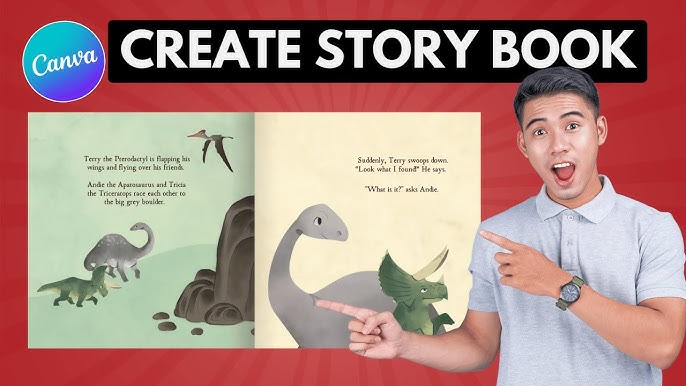
CREATE Your Own Story Book For Kids Like A PRO With Canva And ChatGPT!
Repixo - Canva Apps & Tutorials
194,892 views • 1 year ago 4 min read
Video Summary
This guide demonstrates how to craft a captivating children's storybook using Canva and ChatGPT. The process begins with generating a story using ChatGPT, offering options for simple or more specific prompts to create entertaining and educational narratives. Once a satisfactory story is drafted, it's saved for later editing.
The next phase involves utilizing Canva's extensive template library or a blank canvas to build the book. Background images are added, and text from the story is incorporated using playful fonts. For visual appeal, Canva's DreamLab AI image generator is employed to create custom illustrations that align with the story's themes and characters, ensuring visual consistency throughout the book.
Finally, the completed storybook can be transformed into a digital flipbook through Canva's "simple booklet flip" feature, offering a professional and engaging presentation. This method allows for the creation of a visually appealing and interactive storybook with ease.
Short Highlights
- Generate stories for kids using ChatGPT with customizable prompts.
- Design storybook pages in Canva using templates or a blank canvas.
- Create unique illustrations with Canva's AI image generator, DreamLab.
- Ensure character consistency throughout the storybook by using style references.
- Transform your finished storybook into a digital flipbook for an engaging presentation.
Key Details
Creating the Story with ChatGPT [0:20]
- To start, use ChatGPT to generate a story for kids by entering prompts like "write a short story for kids."
- More specific prompts, such as "write a short story for kids that's entertaining and educational," can yield tailored results.
- If the initial story isn't satisfactory, the "regenerate" button can be used to get a new version.
- Once happy with the story, copy and paste it into a notepad for easy editing.
you can try different prompts to create any story you want
This section details the initial step of story generation, emphasizing the flexibility of ChatGPT to produce creative and relevant narratives for children, with the option to refine the output until satisfied.
Designing the Storybook in Canva [1:08]
- Navigate to Canva and search for "storybook" to access a variety of templates or start with a blank canvas.
- Add background images by going to "elements," searching for relevant imagery, resizing it to fill the canvas, and setting it as the background.
- Incorporate text by adding a text element, pasting parts of the story, resizing, and positioning it.
- A playful font like "comic font" is recommended for a child-friendly look.
let's begin by adding a background image
This part of the process focuses on the initial setup of the storybook in Canva, including adding backgrounds and text, setting the stage for visual storytelling.
Generating AI Illustrations with DreamLab [1:57]
- Open a new tab in Canva and locate the "DreamLab" feature in the sidebar, which is an AI image generator.
- To generate images, input prompts describing the desired visuals, for example, "create a rabbit for a kid story."
- DreamLab will produce four images; select the preferred one for your story.
- To maintain character consistency, click "add image," set a style reference with the character you just created, and then use the same character prompt.
- Alternatively, DreamLab can generate images directly from story text, with the option to regenerate if unsatisfied.
this means you can use the same character throughout your story
This section highlights the power of Canva's DreamLab to create custom and consistent illustrations, significantly enhancing the visual appeal and cohesion of the storybook.
Enhancing Page Design and Duplication [2:46]
- To add more creativity to pages, explore the "elements" tab for "frames," such as blob frames for a fun look.
- The "frame maker app" in Canva allows for the creation of unique, custom frames tailored to the design.
- Duplicate pages to repeat the design process for subsequent parts of the story, copying the next section of text and generating corresponding images.
to make your pages look even better
This part focuses on refining the visual presentation of the storybook pages, offering tools and techniques to make each page more engaging and artistically unique.
Creating a Digital Flipbook [3:34]
- Once the storybook is complete, click "Share," then "More," and scroll down to select the "simple booklet flip" option.
- Connect with Canva by logging in or creating a free account if you don't have one.
- Click "Export Your Design" and then "Save" back in Canva.
- Click "View on simple booklet," give your flipbook a name, and click "Convert."
- The result is a digital storybook with pages that flip like a real book.
once it's done you'll have a stunning digital storybook that flips pages just like a real book
This concluding section explains how to convert the static storybook into an interactive digital flipbook, providing a polished and engaging final product.