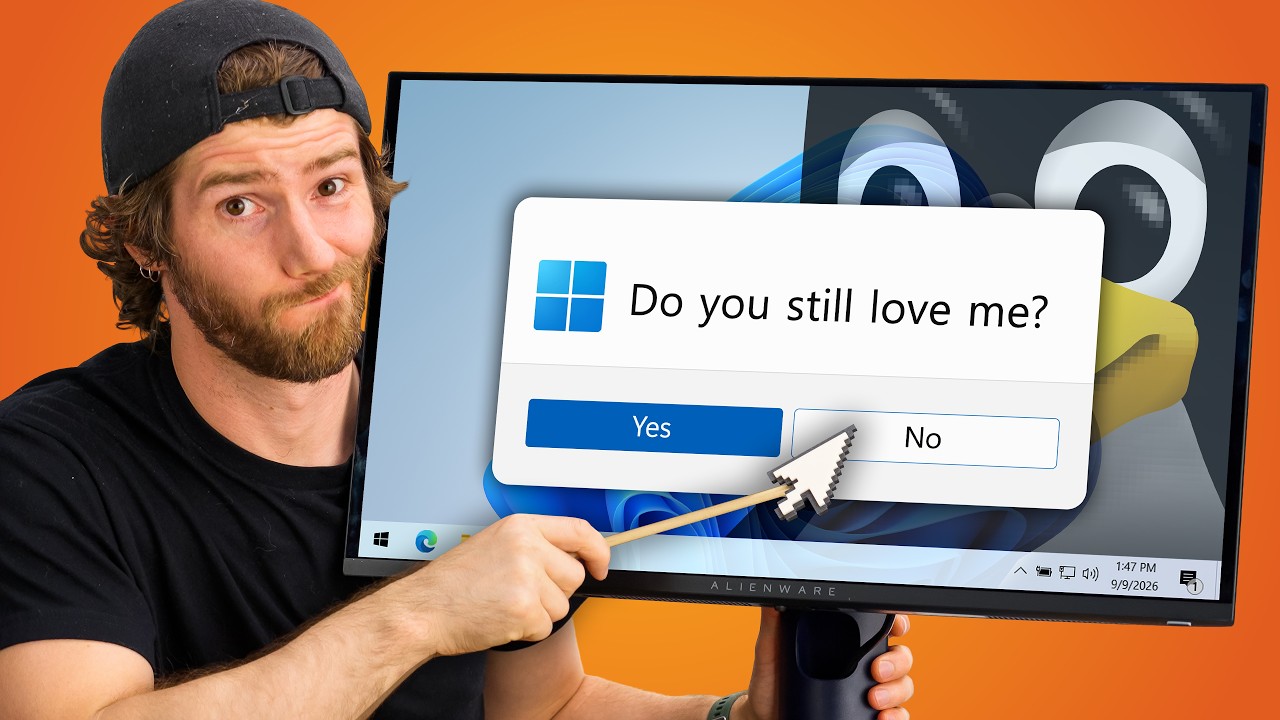
How to Switch to Linux
Linus Tech Tips
1,582,094 views • 3 days ago Save 10 min 5 min read
Video Summary
Tired of Windows' intrusive ads and privacy concerns? You can escape to Linux, and the process is more manageable than you think. While a tool exists to simplify migration, manual transfer of files and applications is a reliable alternative. Linux offers a user-centric experience, prioritizing responsiveness and stability over advertising.
Choosing a Linux distribution (distro) is a personal journey, with resources like Distro C, Distro Chooser, and DistroWatch to guide you. Once you've selected a distro, backing up your data is crucial, especially if you don't have cloud storage. The installation involves booting from a USB drive and navigating your system's UEFI BIOS. While the Linux desktop environment may initially seem alien, its file structure and application management, particularly with Flatpak, offer a powerful and customizable alternative to Windows.
Short Highlights
- Reasons to Switch to Linux:
- Avoids intrusive ads and privacy issues common in Windows.
- Offers a user-centric experience where the OS serves the user.
- Provides a responsive experience, with searches querying local data instead of the web.
- Features reliable sleep functionality, unlike some Windows laptops.
- Choosing a Linux Distribution (Distro):
- Distro C allows testing dozens of distros in your browser without commitment.
- Distro Chooser is a questionnaire to recommend distros based on preferences.
- DistroWatch tracks and ranks distros by popularity and provides release news.
- Data Backup and Migration:
- Back up data to a NAS or cloud storage before installation.
- For users without NAS/cloud, consider a separate backup drive or installing Linux on a new drive.
- Physically disconnect all drives except the target installation drive before proceeding.
- Installation Process:
- Obtain the ISO file from your chosen distro's website.
- Create a bootable USB drive using tools like Balena Etcher or Rufus.
- Access UEFI BIOS to set the USB drive as the primary boot device.
- Navigating the Linux File System:
- Linux uses a single root directory (
/) with drives mounted within it. /home/usernameis the equivalent ofC:\Users\Usernameand contains user documents.- Other directories like
/etc(config files),/var(variable data), and/usr(installed programs) exist.
- Linux uses a single root directory (
- Installing Applications:
- Graphical package managers are common for downloading software.
- Flatpak is a universal, sandboxed package format installable on most distros.
- Bottles can run Windows applications with no Linux equivalent.
- Handling Drivers and Compatibility:
- Most distros include necessary drivers, but Nvidia drivers can require specific attention.
- Steam with Proton allows many Windows games to run on Linux.
- Tools like Heroic Launcher and Lutris assist with non-Steam games and emulation.
Related Video Summary
Key Details
The Frustration with Windows [0:00]
- Users often leave Windows due to privacy concerns, inconvenient updates, or the OS serving ads.
- The core issue is an operating system that prioritizes serving ads over serving the user.
"Whatever your reason, you're here, you're watching this now, and it's time to actually do something about it."
Migrating to Linux [0:30]
- A tool created by Reddit user Gilles Dwiv can simplify migration, though it's in alpha.
- Manual migration is a viable and potentially rewarding alternative.
- Linux offers benefits like immediate search responses and reliable sleep functionality.
"Do you like to search a thing and it responds right away instead of querying the web?"
Choosing Your Linux Distro [1:15]
- Selecting a Linux distribution (distro) is a personal choice, akin to choosing a family vehicle.
- Resources like Distro C, Distro Chooser, and DistroWatch can help in making this decision.
- Distro C allows testing dozens of distros directly in the browser without installation.
"And my goal is not to make personal choices for you today. I'm not Microsoft."
Preparing for Installation [3:00]
- Obtain the ISO file for your chosen distro and create a bootable USB drive using tools like Balena Etcher or Rufus.
- Back up all important data to a NAS, cloud storage, or a separate drive.
- Physically disconnect all drives except the one intended for Linux installation to prevent accidental data loss.
"If you have a NAS, or a network attached storage device, or if you use cloud storage, then backing up your data is relatively straightforward."
The Installation Process [4:30]
- Access your system's UEFI BIOS by holding Shift while restarting in Windows or by pressing a hotkey during boot.
- Familiarize yourself with the boot device selection menu and set your USB drive as the primary boot device.
- Consider enabling Secure Boot if available, though some drivers may require an extra step.
"You're going to want to familiarize yourself with the boot device selection menu."
Understanding the Linux File System and Applications [6:30]
- Linux has a single root directory (
/) where all drives are mounted, unlike Windows' drive letters. - The
/home/usernamedirectory is the equivalent ofC:\Users\Usernameand contains personal files. - Applications can be installed via graphical package managers or universal formats like Flatpak, which bundles dependencies and sandboxes applications.
"See, while Windows gives every drive a letter and its own separate folder tree underneath that, Linux has one tree that starts at slash and then every drive gets attached or mounted somewhere inside that tree."